I ended the previous post with a simple declarative config for NixOS-based VM. Now it’s time to start customizing it.
Normally, a system boots into some kind of login prompt, which could be a simple text interface or a fancy graphical one. For my project, skipping the login step makes the most sense. The system should directly boot into the custom launcher, skipping the authorization process (I might revisit this later to provide user profiles).
Login manager
A login manager is a daemon responsible for ensuring that a newly started process for a logged-in user runs in the correct context. Simply put, it starts a user session.
The simplest approach for this design is to use a minimal login manager. For now, it is enough to configure it to automatically log in as a specific user.
I’ve used greetd for this purpose. It’s simple but highly configurable. Since we don’t need a graphical layer for login, we can set it to directly execute our custom launcher.

Greetd handles autologin and starting our launcher.
Greetd configuration
The configuration of the greetd daemon is rather simple:
{ lib, pkgs, config, ... }:
let
  cfg = config.blueprint.retro.launcher;
  launcherWrapperCmd = "echo 'Hello world!'";
...

in {
  options.blueprint.retro.launcher = {
    enable = lib.mkEnableOption ("Enable the retro launcher session via greetd");

    autologinUser = lib.mkOption {
      type = lib.types.str;
      default = "retro";
      description = "User used by greetd to run the launcher session";
    };
  };

  config = lib.mkIf cfg.enable {
    hardware.graphics.enable = true;
    ...

    services.greetd = {
      enable = true;
      settings = rec {
        initial_session = {
          command = launcherWrapperCmd;
          user = cfg.autologinUser;
        };
        default_session = initial_session;
      };
    };
  };
}
I’ve created a new NixOS module for this purpose. It accepts a username for the user that will be automatically logged in.
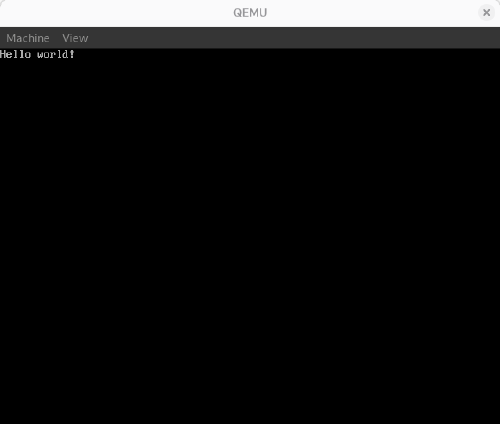
After adding this module to the NixOS configuration, I was able to boot and verify that greetd works correctly.
Wrapping the launcher
Before moving to the actual launcher, I still need to provide a compositor1 to run the launcher app. On a normal desktop system, this role is covered by KDE (kwin2) or GNOME (mutter3), but I don’t need the full desktop environment.
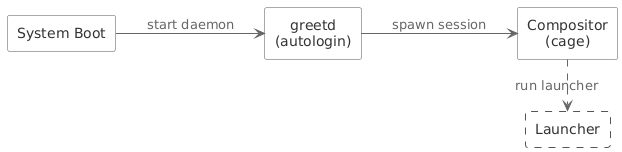
I aim for a kiosk-like experience to avoid unnecessary overhead and dependencies. The compositor needs to handle:
- creating a Wayland session to render a fullscreen window,
- managing input devices,
- managing display output,
- controlling focus.
For this project I chose Cage. It is a small compositor designed exactly for running a single application in kiosk mode. Cage supports a minimal set of protocols required to run applications that don’t rely on advanced Wayland features. In this case, it will host my launcher.
It can run multiple apps, but switching between them is impossible. The last launched app is placed on top and gets input. This isn’t a problem for now because this limitation fits my requirements anyway. :)
I can now update my greetd config to run Cage with an example app.
#  launcherWrapperCmd = "echo 'Hello world!'";
   launcherWrapperCmd = "${pkgs.cage}/bin/cage -s -- ${pkgs.mesa-demos}/bin/vkgears";
After restarting the VM with the updated NixOS configuration, I see that the vkgears demo runs correctly.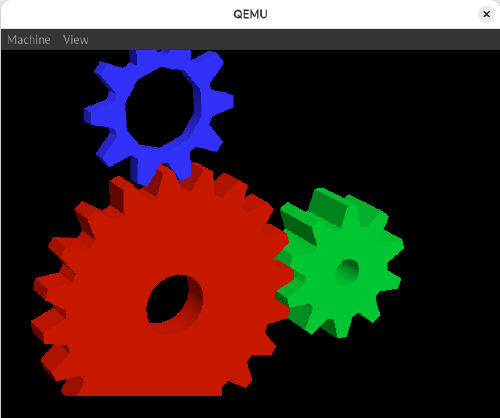
Description of Wayland architecture: https://wayland.freedesktop.org/architecture.html ↩︎
Wayland Compositor used by KDE: https://github.com/KDE/kwin ↩︎
Wayland Compositor used by GNOME: https://gitlab.gnome.org/GNOME/mutter ↩︎